Quick answers
Help for Superflow on Windows. The tutorials have the full steps, with screens.
Getting started
- Install Superflow and open it. The setup walks you through picking a speech model and a microphone.
- Click into any text field, hold Caps Lock, speak, and let go.
- The text is pasted where your cursor is.
Shortcuts (defaults)
| Action | Keys |
|---|---|
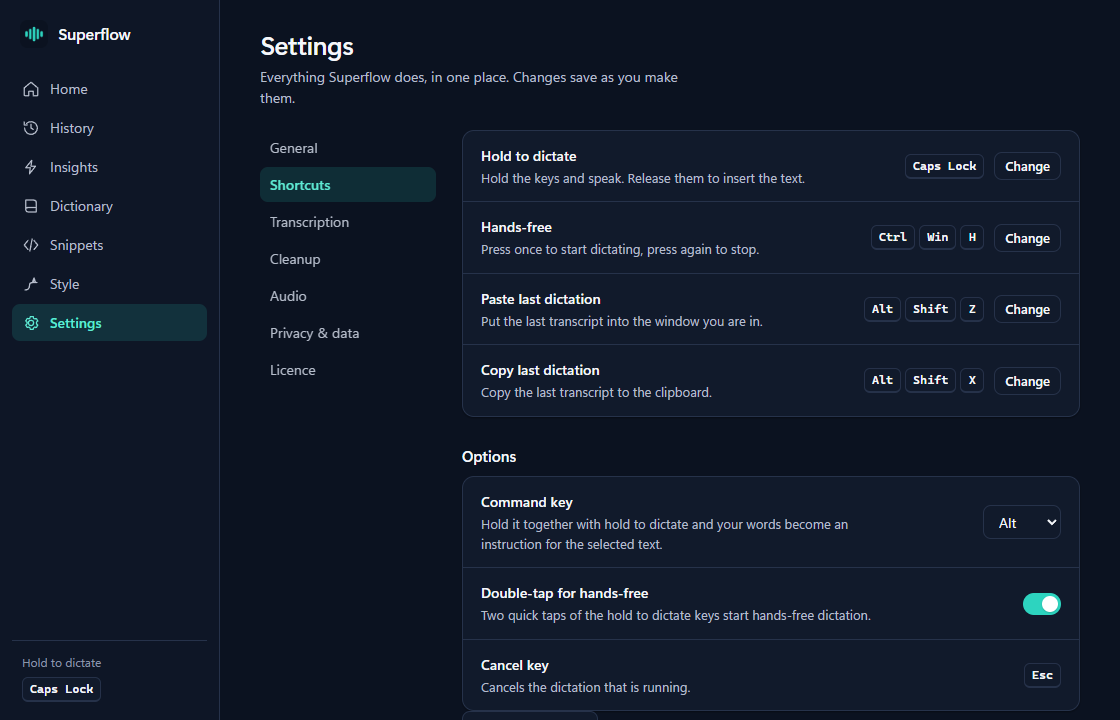
| Dictate | Hold Caps Lock, speak, release |
| Hands-free | Ctrl + Win + H, or double-tap Caps Lock; press again to finish |
| Command mode | Hold Caps Lock + Alt with text selected |
| Cancel | Esc |
| Paste or copy the last dictation | Shift + Alt + Z or Shift + Alt + X |
Every shortcut can be changed in Settings. Installed an earlier version? It keeps the key you had, Ctrl + Win, until you change it.
No Win key on my keyboard
Caps Lock is the default key, so these keyboards work out of the box. If you use Ctrl + Win instead: some gaming keyboards never send a real Windows key to apps (Start still opens, but nothing sees the key), so Ctrl + Win does nothing. After three Ctrl holds without one, Superflow offers to switch dictation to Caps Lock. You can also pick it yourself in Settings.
As a push-to-talk key, Caps Lock no longer toggles capitals. Shift + Caps Lock still does, and a dictation switches a stray Caps Lock toggle off.
Hold Tab to dictate
Any single key can be the push-to-talk key and still do its normal job when tapped. Pick Tab in Settings: tap it to type a Tab, hold it for a moment to dictate. Alt + Tab, Shift + Tab and Ctrl + Tab are left alone.
Bluetooth mic loses the first word
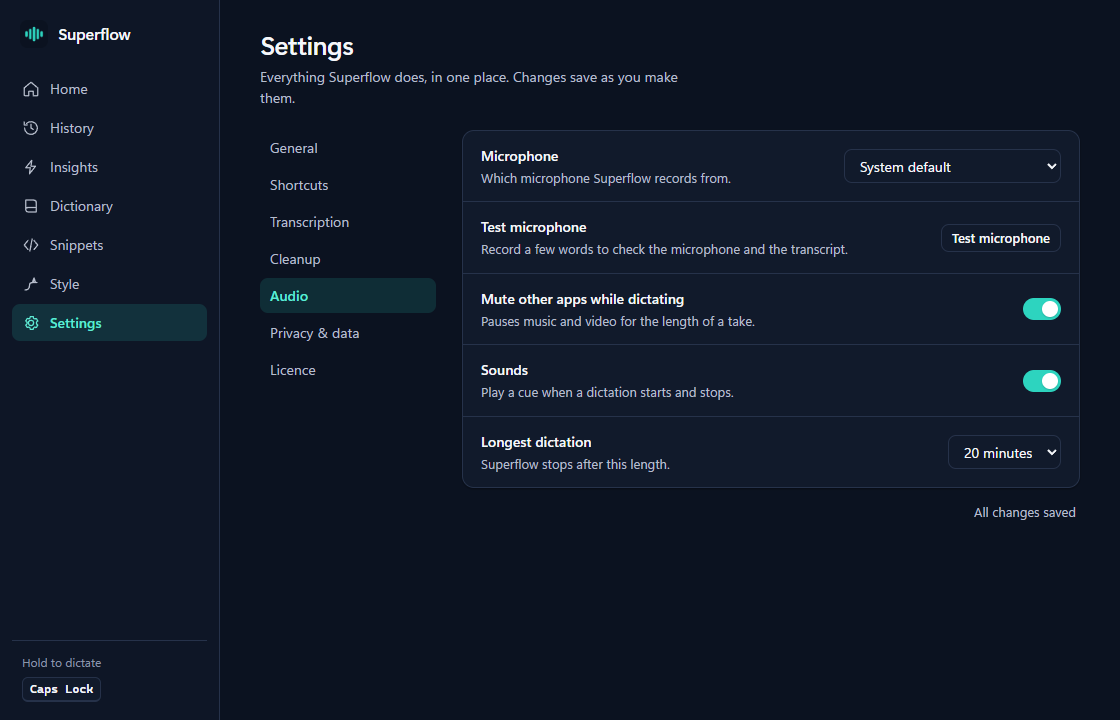
Bluetooth headset microphones take about a second to start, so the first word of a take can be lost. Wired and USB microphones start immediately, so use one of those for dictation, or wait a moment after pressing the key before you speak.
Hindi comes out wrong
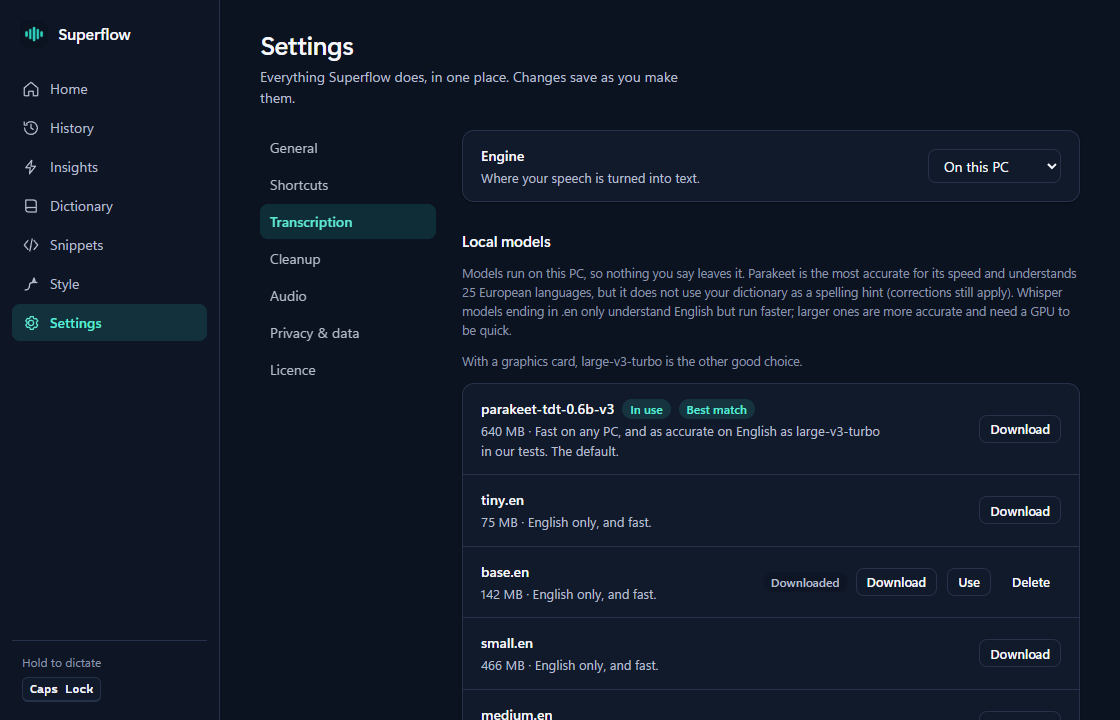
Parakeet understands 25 European languages and not Hindi, and the small Whisper models (tiny and base) are weak outside English. For Hindi use a larger Whisper model, such as large-v3-turbo, which the language guide in Settings recommends. A larger model is slower on a CPU; on a Vulkan GPU large-v3-turbo took about 0.4 to 0.9 seconds per short dictation on our one test PC.
Models and cleanup
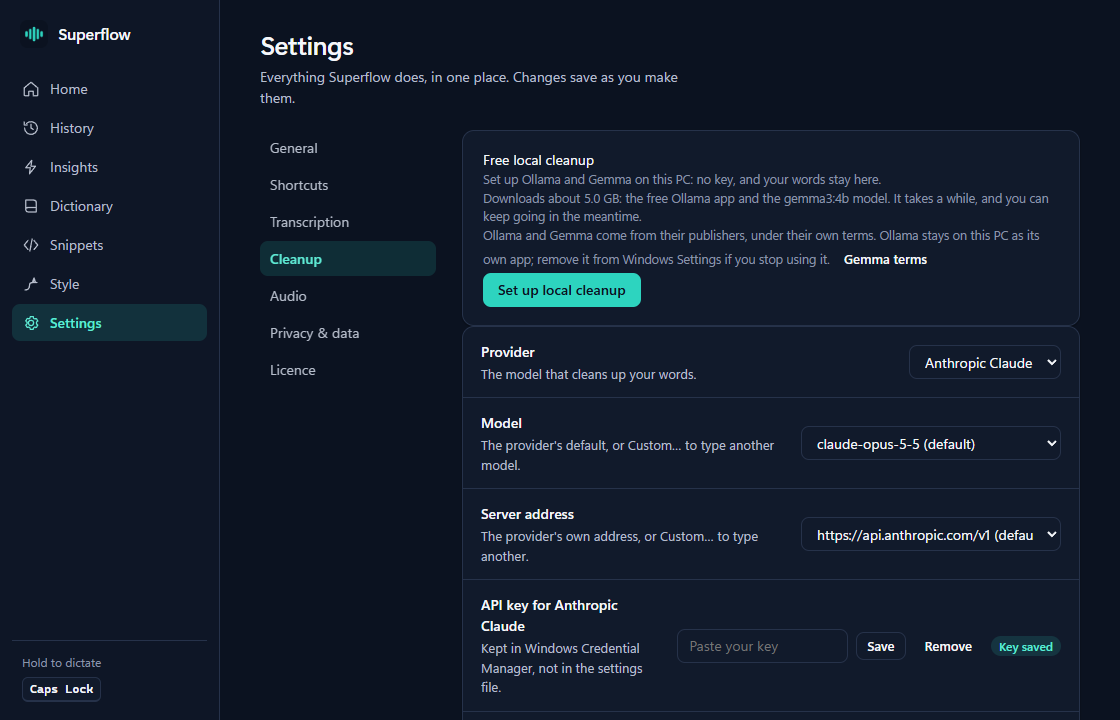
Speech models are downloaded inside the app. For private, offline cleanup, Settings > Cleanup can set up Ollama for you. Cleanup can also be switched off, and the raw transcript is always the fallback. The tutorial has the steps.
Your account on this site
Downloading and using the app never needs an account, and the app never asks you to sign in. An account is only for this website, and only if you want email about your account and new versions. You can create one, log in, reset a password or delete the account from the account page.
Your key
Buying opens before the first 30-day trials end; the pricing page has the details. Lost the email with your key? Resend my key will work once buying is open.
Still stuck?
Write to [email protected]. Say what you did and what the app showed. If we ask for a log, send it by email and never post it in public.