Every step written against the real app, from the installer to uninstalling. The screens are the Windows app with sample data.
Install, and the Windows warning
About two minutes. Windows will warn you about the installer, and that is expected.
Open the download page and choose Download for Windows. Your browser may say the file is not commonly downloaded; choose to keep it.
Open the file. Windows SmartScreen shows a blue box, Windows protected your PC, saying it stopped an unrecognised app. The installer is not code-signed yet, so Windows does not know the publisher.
Choose More info, then Run anyway. Do this only for a file you downloaded from this site.
Follow the installer. It installs for your user only, in your local app folder, with no administrator rights, and adds a Start-menu shortcut. If the WebView2 runtime is missing it fetches it; Windows 11 already has it.
Open Superflow from the Start menu. The first run starts your 30 days and opens the setup wizard.
The app listens for your shortcut keys in every window, because that is how a hold-to-talk key works. Some security tools are wary of that. If yours blocks Superflow, do not switch your protection off; tell us what it said.
Your first dictation
The setup wizard has five steps and you can leave it at any time with Skip setup.
Welcome. Read it and choose Continue.
Choose a speech engine. Keep On this PC. The model list starts on parakeet-tdt-0.6b-v3 (640 MB); choose Download and wait for the bar to finish. You can also continue and download one later in Settings.
Check your microphone. Pick the microphone you speak into and choose Test microphone. Say something for four seconds. It shows what it heard, or "No speech heard".
Tidy up the text. If you are unsure, choose Off: insert exactly what I said. You can set tidy-up up later; see Clean text with Ollama.
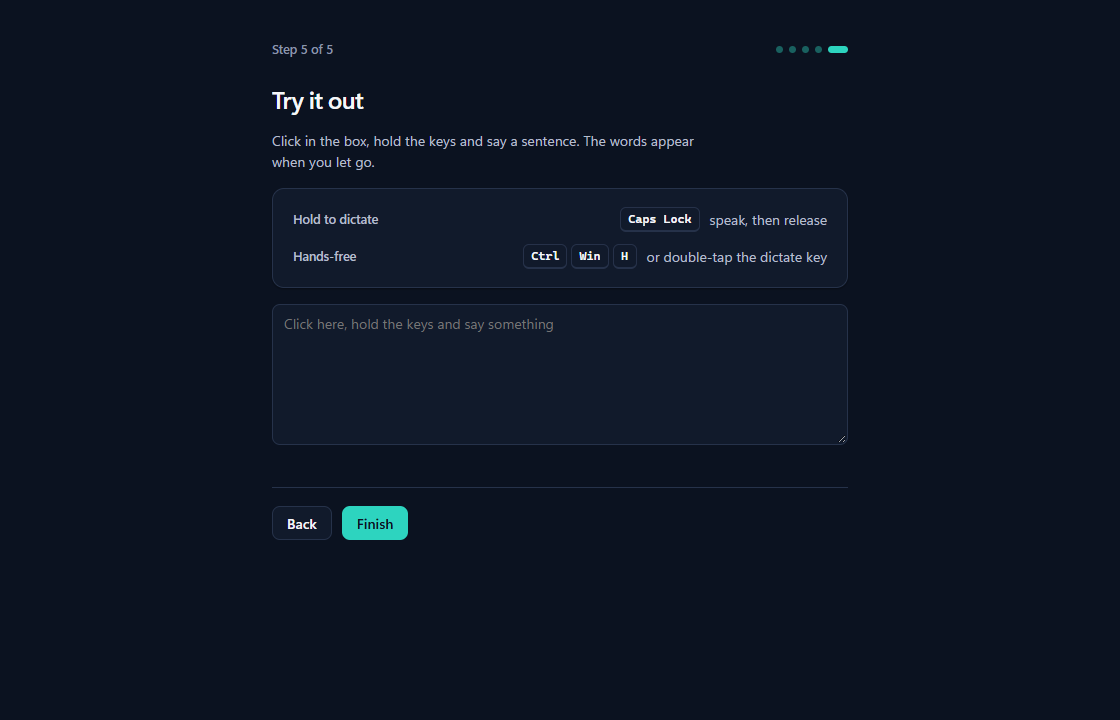
Try it out. Click in the box, hold Caps Lock, say a sentence, and let go. The words appear in the box.
The last wizard step shows the keys to hold. Hold to dictate is Caps Lock; hands-free is Ctrl + Win + H.
In any other app
Click into any text field, hold Caps Lock, speak, and let go. A small bar shows that it is listening. Your clipboard is put back after the paste, and in a terminal the text goes in as one line and never presses Enter.
A press shorter than about a third of a second counts as a tap and is thrown away; the app says "Hold the keys while you talk, or double-tap for hands-free". Closing the Superflow window leaves it running in the tray, next to the clock. Right-click the tray icon to open it again or choose Quit Superflow.
Hotkeys and modes
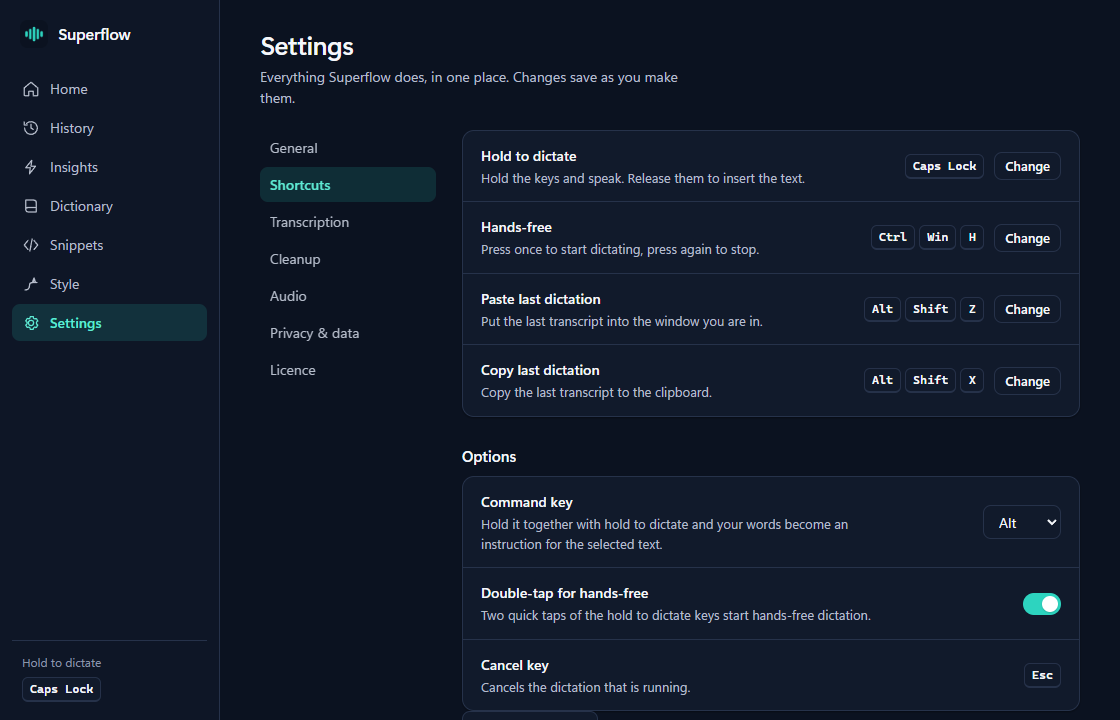
Every shortcut can be changed in Settings > Shortcuts. An earlier version keeps the key you had, Ctrl + Win, until you change it.
Action
Default keys
Dictate
Hold Caps Lock, speak, release
Hands-free
CtrlWinH, or double-tap Caps Lock; press again to finish
Command mode
Hold Caps LockAlt with text selected
Cancel
Esc
Paste the last dictation
ShiftAltZ
Copy the last dictation
ShiftAltX
Settings > Shortcuts.
Change a shortcut
Choose Change next to it, then press the new keys, up to four. Esc cancels. Hold to dictate and hands-free cannot share the same keys. A single letter or digit as a shortcut stops that key typing normally, and the app says so.
Keyboards without a Win key, Caps Lock and Tab
Caps Lock is the default, so keyboards that never send a real Windows key work out of the box. If you pick Ctrl + Win and it does nothing, switch back; see Caps Lock and Hold Tab to dictate.
The modes
Dictation is the default: hold, speak, let go.
Hands-free keeps listening until you press the keys again. It stops at the Longest dictation limit in Settings > Audio (5 to 30 minutes), and warns one minute before.
Command mode changes the text you selected: hold the dictate keys plus the command key (Alt) and say what to change, such as "make this a bulleted list". It needs a cleanup model, and the switch is on the Style page.
Developer mode turns "camel case user id" into userId and "main dot r s" into main.rs in code editors, terminals and AI chats. It also needs a cleanup model. The switch is on the Style page.
Choosing a model
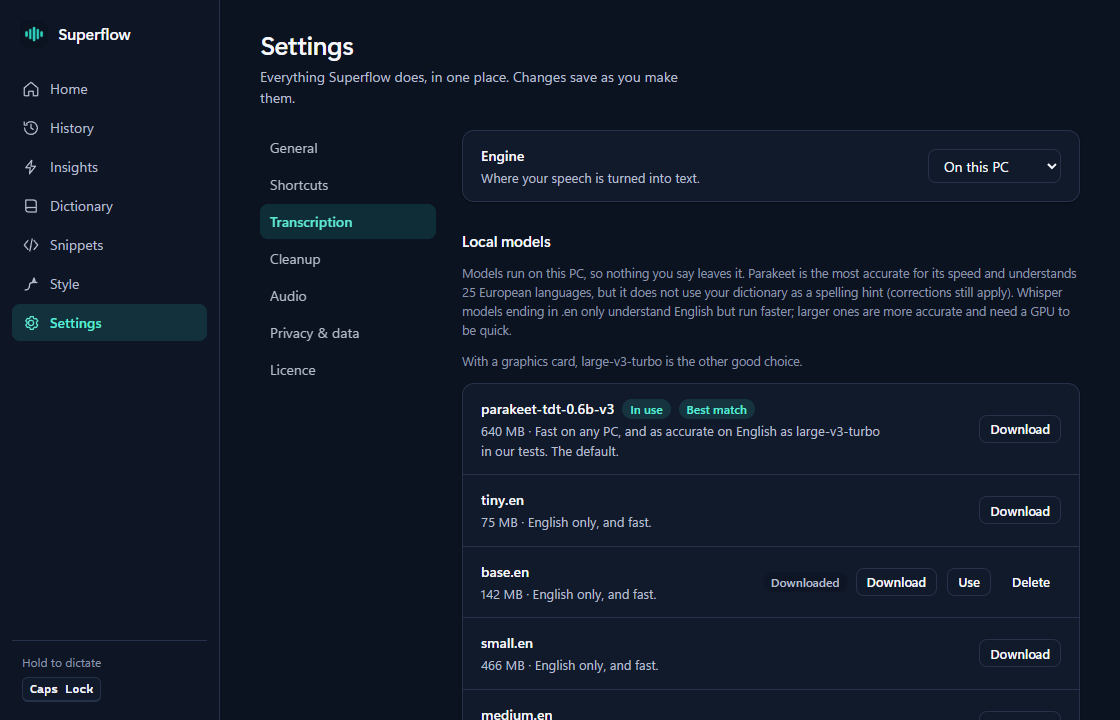
The model is what turns your voice into text. Settings > Transcription lists them with their sizes.
Settings > Transcription.
No graphics card: stay on parakeet-tdt-0.6b-v3 (640 MB). It is the default and understands 25 European languages. It does not understand Hindi.
With a graphics card:large-v3-turbo (1.6 GB) is the other good choice. large-v3-turbo-q5_0 (547 MB) is a smaller version of it. The app reads your card's memory and says which suits.
Other languages, Hindi included: pick the language under Languages and the app marks the models that suit it. base and tiny are weak outside English.
English only, small download: the Whisper models ending in .en (tiny.en 75 MB, base.en 142 MB, small.en 466 MB, medium.en 1.5 GB). They only do English.
Download and switch
Choose Download on a row and wait for the percentage to finish. Then choose Use. The row marked In use is the one that runs. Delete frees the disk space, and you can download it again.
On the one PC we measured, a Radeon RX 9070 XT, a short take took about 0.2 to 0.9 seconds depending on the model. Other PCs will differ, and we have not measured weak ones yet. A cloud engine (OpenAI, Groq, Deepgram, or any OpenAI-compatible server) is an option under Engine; it sends your audio to that provider.
Clean text with Ollama
Optional. A language model can drop filler words and add punctuation after the transcription.
This part is optional setup, and it is new. It has not yet been tried on slow or weak PCs. If it fails or runs slowly, dictation still works and you get the raw words.
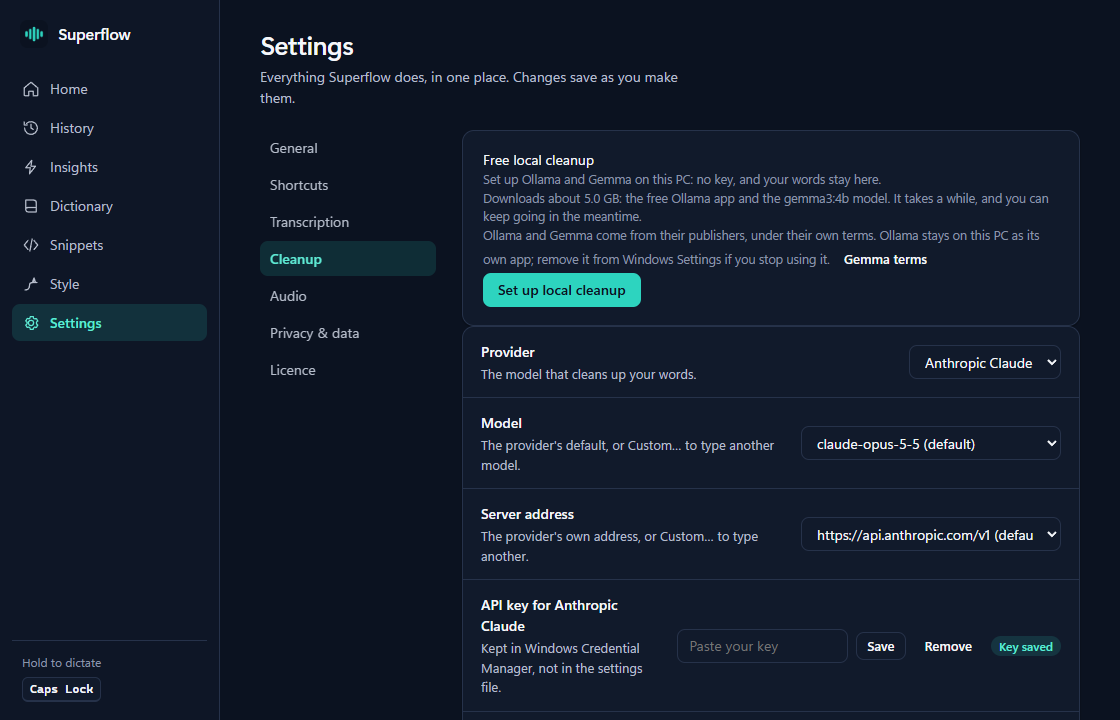
Open Settings > Cleanup and choose Set up local cleanup (the same card is in the setup wizard).
The card says how much it will download before it starts: Ollama, the free app that runs models on your PC (about 1.7 GB), and one Gemma model. A graphics card with about 9 GB of memory gets gemma3:12b (about 8 GB more); other PCs get gemma3:4b (about 3.3 GB more). It needs that much free disk space and says so if there is not enough.
Wait for the stages: downloading Ollama, checking it, installing, starting, downloading the model, loading it. You can keep using the app, and Cancel stops it.
When it says Ready, cleanup runs on your PC and your words are not sent anywhere.
Settings > Cleanup. The sample here shows a cloud provider selected.
How much it changes
The Style page sets the level: Off inserts what was said, Light adds punctuation and drops fillers, Medium tightens wording, High rewrites into paragraphs or lists. It also sets a writing style per kind of app. If the model takes longer than the timeout in Settings > Cleanup (12 seconds by default), you get the raw words instead.
On a card shared with a large speech model, gemma3:12b slowed large-v3-turbo in our test. If that happens, switch the model to gemma3:4b or use Parakeet. Instead of Ollama you can use Claude, OpenAI, Groq, OpenRouter, MiniMax or your own server, with your own key. Those send the text to the provider. After the trial, cleanup needs a licence key.
The dictionary
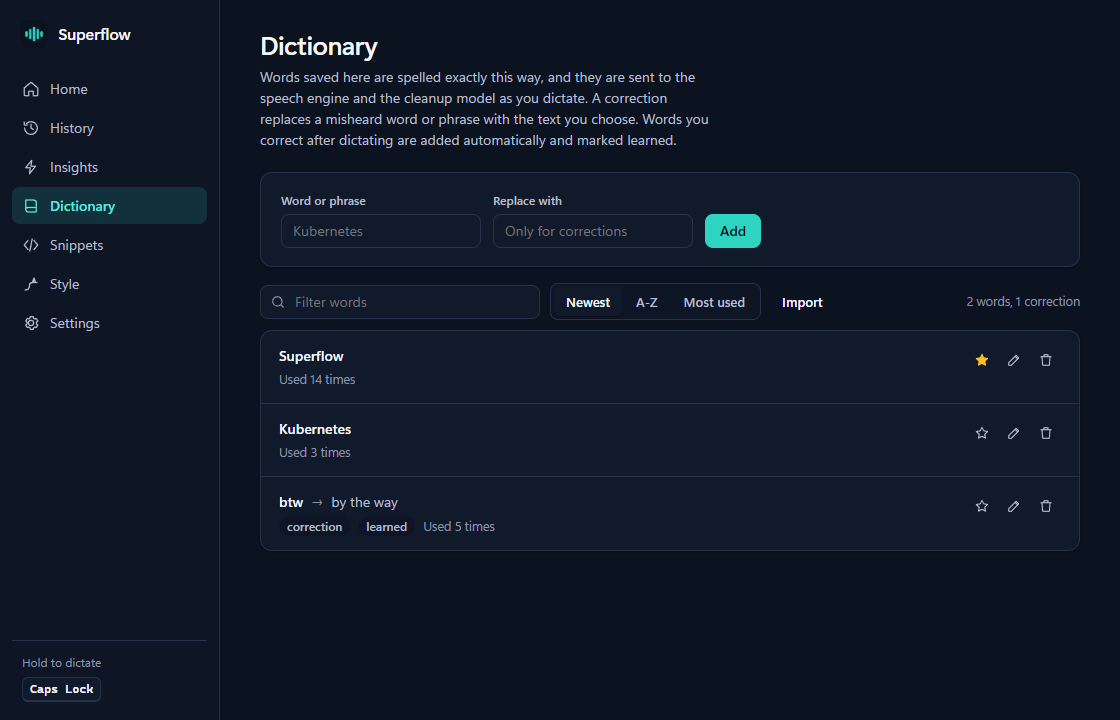
Words and phrases Superflow should spell your way, and corrections for words it mishears.
Open Dictionary in the sidebar.
Type the word or phrase, for example a name. Leave Replace with empty to have it spelled exactly so, or fill it in to replace a misheard phrase, such as btw with by the way. Choose Add.
The words go to the speech engine as a hint and to the cleanup model. Parakeet does not use them as a hint, but corrections still apply.
The Dictionary page, with sample entries.
Learning from your fixes
With cleanup on and Read the text around the cursor switched on in Style, Superflow looks at the field a few seconds after a paste. If you fixed a word by hand, it can add the correction and shows a Learned note with Undo. Learned entries carry a badge. Deleting or undoing one stops it coming back. Password fields are never read. Snippets in the sidebar expand a phrase you say into saved text.
In free mode the dictionary and snippets are switched off; your entries are kept.
History
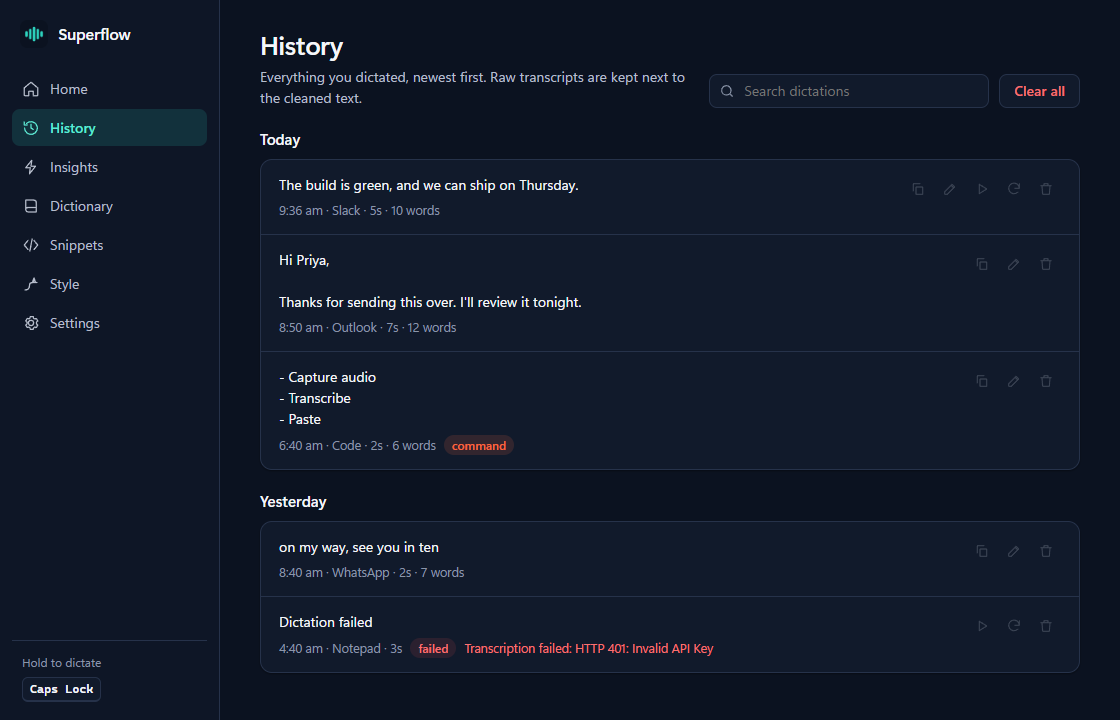
Every dictation, newest first, with the raw words kept next to the text.
The History page, with sample entries.
Search with the box at the top. Each entry has buttons to copy the text, show the raw transcript and delete it.
Play and transcribe again appear only on entries that kept their recording. Recordings are kept only if you switch on Keep recordings in history in Settings > Privacy & data.
The same page can delete history older than 7, 30, 90 or 365 days, or clear it all. Clearing cannot be undone.
A failed take is listed with its error. Entries stay readable in free mode.
The 30-day trial and free mode
Everything is on for 30 days, with no key and no account. Nothing to pay.
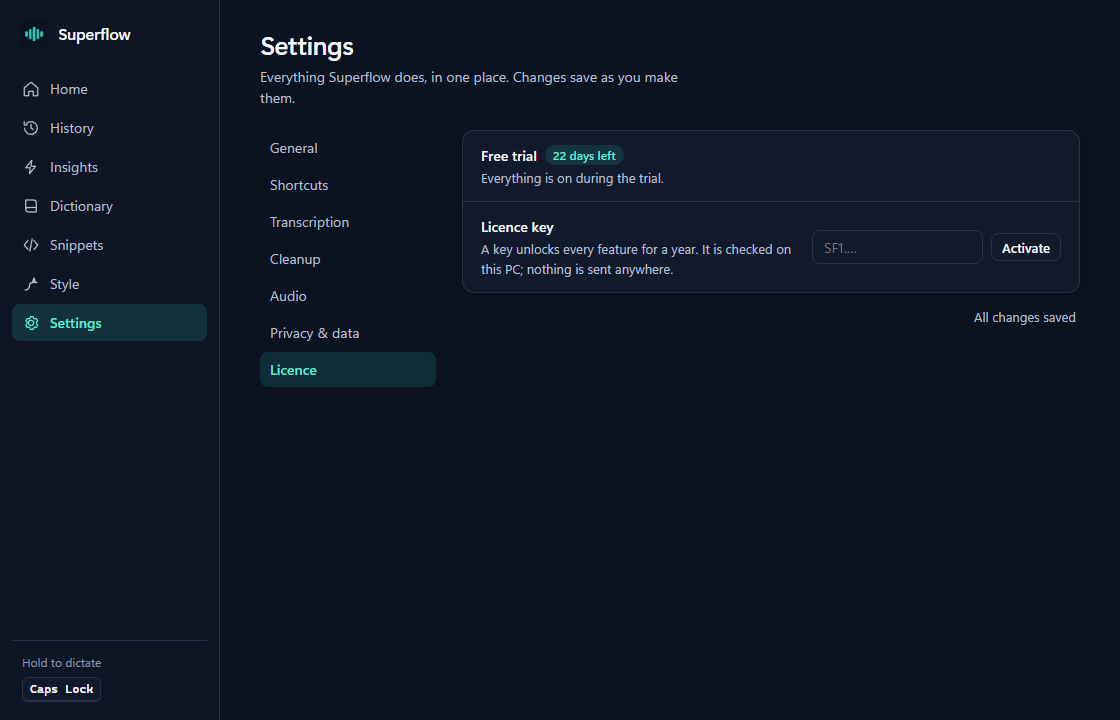
The 30 days start the first time Superflow runs, and are counted on your PC. Settings > Licence shows the days left.
In the last 7 days, if there is no local speech model on your PC (for example you use a cloud engine), the app downloads Whisper base (142 MB), so dictation keeps going on day 30. If that fails it says so with a Download button.
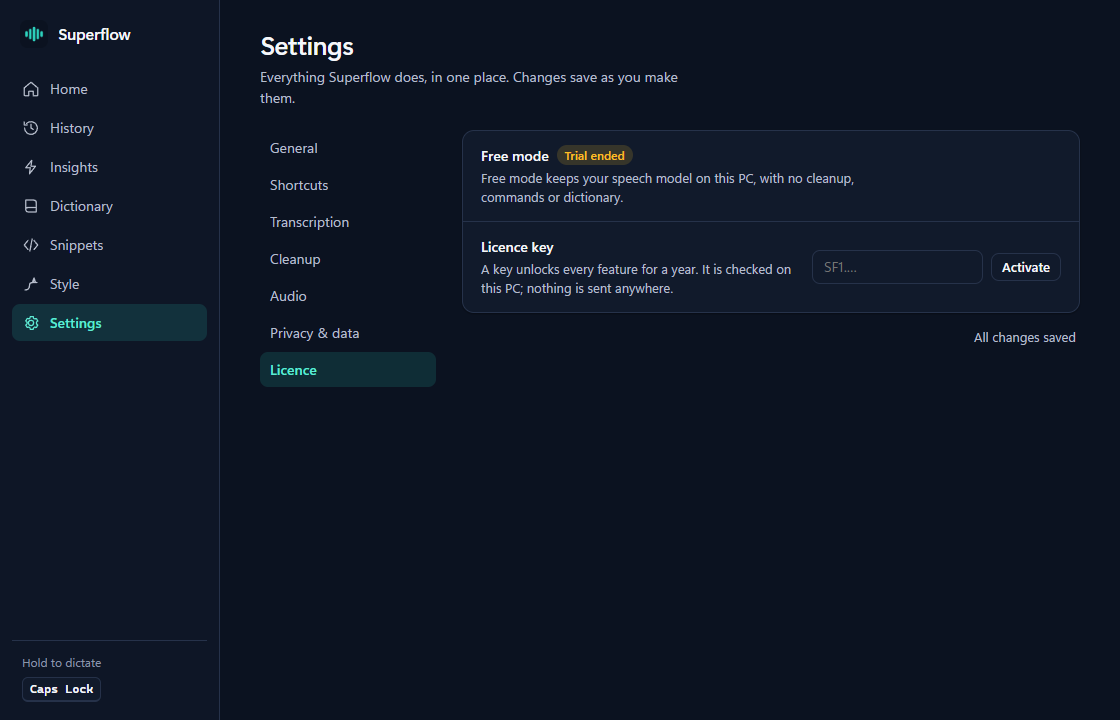
After day 30 the app is in free mode: the local speech model you already have (Parakeet by default), hold to dictate and hands-free, paste at the cursor. Switched off: cloud engines, cleanup, command mode, developer mode, the dictionary and snippets.
Your settings, history and dictionary entries are not deleted. They work again with a key.
Settings > Licence in free mode. During the trial it shows the days left instead.
Buying a key opens before the first trials end. See Pricing.
Entering a licence key
Buying is not open yet; this is what to do once you have a key.
Copy the key from the email. It starts with SF1.
Open Settings > Licence, paste it into Licence key and choose Activate.
The app says Licence activated and shows who it is for and when it is valid until. Everything comes back, with your settings as you left them.
Settings > Licence during the trial.
The key is checked on your PC and nothing is sent anywhere. Spaces and line breaks from the email are ignored. A damaged key, a key not signed by us and an expired key each get their own message and change nothing.
Updating
For now, updating means installing the new version over the old one.
Right-click the tray icon and choose Quit Superflow, so the old copy is not running.
Run the new installer, with the same SmartScreen steps as in Install.
If the installer offers to uninstall the old version first, choose Do not uninstall, and leave Delete the application data unticked, or your history, dictionary, models and licence key go.
Your settings, history, dictionary and models are kept in your Roaming app-data folder, apart from the program. Your trial or key carries over.
Uninstalling
Open Windows Settings > Apps > Installed apps, find Superflow and choose Uninstall.
The uninstaller has a box, Delete the application data. Ticked, it also removes your settings, history, dictionary, downloaded models and the API keys Superflow saved in Windows Credential Manager. Unticked, those stay for a reinstall.
If you set up cleanup through Superflow, Ollama stays installed as its own app. Remove it from the same Apps list if you no longer use it.
When something goes wrong
Nothing happens when I hold the keys
Check Superflow is running: look for its icon by the clock. Open it from the Start menu if not.
Hold for about a third of a second or longer. A shorter press is a tap.
Using Ctrl + Win? Some keyboards send no Win key. Switch back to Caps Lock in Settings > Shortcuts.
"No sound from the microphone. Is it muted?"
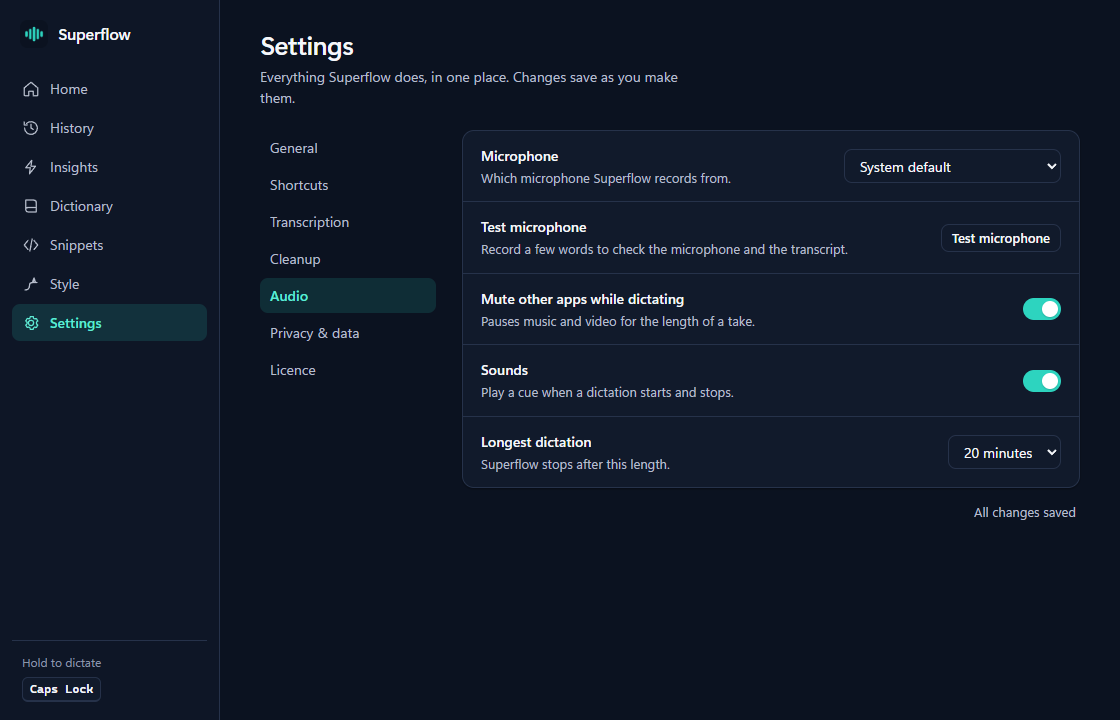
Open Settings > Audio, choose the right input, and use Test microphone: the meter should move when you speak.
In Windows Settings > Privacy & security > Microphone, make sure microphone access is on, including for desktop apps.
A Bluetooth headset microphone can lose the first word. Try a wired one.
"No speech heard" or "Nothing was transcribed" mean the model got no words: speak closer, or check the same things.
Settings > Audio.
The words are not typed
If the app says "The app did not take the text. It is on the clipboard: press Ctrl+V" (some apps want Shift+Insert, and it says which), paste it yourself.
Any time, ShiftAltZ pastes the last dictation, and History keeps it.
Windows can stop a normal program from typing into a window that runs as administrator. Try a normal window to see if that is the cause.
It is slow
Cleanup is the slowest step. Set the level to Off on the Style page to see the difference.
Large Whisper models want a graphics card. Without one use Parakeet, or a small .en model for English.
If cleanup uses gemma3:12b on the same card as large-v3-turbo, switch cleanup to gemma3:4b.
We have not measured weak PCs yet, so tell us what you see.
Free mode: "needs the base model"
The app downloads Whisper base (142 MB) when it needs it. Wait a minute and try again, or choose Download base in Settings.
Still stuck
Write to [email protected] with what you did, what the app said, your Windows version, and your PC model and how much RAM it has (Settings > System > About shows both). A slow or failing dictation is much easier to explain once we know the PC. We may ask for a log: send it by email, never in public. More in Help.